










































MailboxAI - Webmail + AI Assistant For Perfex CRM
Other Perfex Modules Limited Intro Price: $59 for the first 10 buyers only. The price will increase afterwards. NOTE: This is a module for



Other Perfex Modules
 |  |  |
NOTE: This is a module for Perfex CRM. It is not a standalone script.
 |
MailboxAI – Webmail + AI Assistant For Perfex CRM
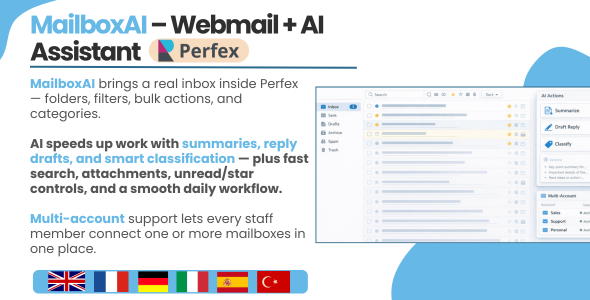
MailboxAI brings a real webmail experience directly inside Perfex CRM — so your team can read, reply, organize, and convert emails into CRM work without switching tabs all day.
You get a clean inbox UI with folders, search, filters, bulk actions, categories, drafts, scheduled emails, and a full compose/reply workflow. And when you want speed, AI features are available on-demand: summarize unread emails, suggest replies, improve writing, and classify messages — only when you click.
- Perfex-native UI: uses Perfex panels, buttons, modals, and Bootstrap styling so it looks like it belongs.
- Multi-account support: switch between mailboxes from the top selector (great for teams and shared inboxes).
- Flexible sync: cron sync, light sync, or manual sync — depending on your hosting and workflow.
- Fast inbox actions: star/unstar, mark read/unread, delete (local), attachment indicators, outgoing indicators.
- AI on demand (optional): unread summaries + reply drafts when you click (no forced automation).
Core Inbox Experience
Inbox, folders, counters
- Folders navigation: Inbox, Sent, Drafts, Trash, Spam/Junk, Archive (based on your account mappings).
- Unread & total counters: see what matters instantly (Inbox unread badge + folder totals).
- Clean email list: sender, subject, snippet, received date, attachment icon, and outgoing status.
- Sync status indicator: clear status badge with last sync date and error message (if any).
Search + filters (real-world useful)
- Search: quick search by keyword (sender/subject/snippet) so you find emails fast.
- Filters: show all / unread / starred / has attachments.
- Category filter: filter emails by category label for clean triage workflows.
✅ Bulk actions
- Mark read / mark unread in bulk.
- Star / unstar in bulk.
- Apply category / clear category in bulk.
- Delete selected (local) in bulk.
️ Categories (color-coded)
- Create categories with a name, description, color, and active toggle.
- Assign categories per email or in bulk (great for pipelines like Billing / Urgent / Follow-up / Support).
Email Actions & Workflow
Open email (thread view) + quick actions
- Open an email in a clean modal with the full content/thread.
- Reply, Reply all, and Forward are available right from the email view.
- Quick actions: star/unstar, mark read/unread, delete (local).
- Attachments are clearly indicated, and outgoing messages show status.
Convert emails into CRM work (one click)
- Convert to Task: turn an email into an actionable task for your team.
- Convert to Ticket: convert a conversation into a support ticket with context.
- Convert to Lead: create/attach a lead and keep the email history.
Compose, Reply, Templates & Scheduling
✍️ Compose (full experience)
- To / CC / BCC live search: instant suggestions from Perfex data: Staff, Customers/Contacts, and Leads.
- Email templates: select a template while composing to save time and keep consistency.
- Attachments: attach files while composing and sending.
- Signatures: signatures are stored per mailbox account and applied automatically when needed.
- Save Draft: keep unfinished emails safely.
- Schedule Email: send later (ideal for follow-ups and different timezones).
↩️ Reply workflow (fast + consistent)
- Use templates in replies for standard responses.
- Save a reply as draft or schedule it for later.
- AI tools are available inside reply flow (optional, on-demand).
AI Features (Optional, On-Demand)
MailboxAI works perfectly without AI. If you enable AI, it’s still kept optional and controlled — nothing runs automatically unless you choose it.
- Summarize unread emails: one click → short summaries for quick triage.
- Suggest reply drafts: generate reply ideas based on your mailbox preferences.
- Improve message: rewrite to be clearer, more professional, shorter, or more direct.
- Summarize single email: useful when messages are long or contain many details.
- Classify email: helpful for sorting and deciding next actions faster.
Mailbox-level AI preferences let you define default tone, language, length, and “reply notes” so replies match the way you want to communicate.
Auto Replies (Smart + Flexible)
Create auto-replies that behave like real business rules, not just a basic autoresponder.
- Apply to accounts: all accounts or selected mailboxes only.
- Sender scope: any sender (or your matching rules).
- Subject matching: “contains” works great for real-world matching (with optional case sensitivity).
- Send frequency: e.g. once per sender (perfect for out-of-office) or more flexible setups.
- Limits: cooldown minutes, max per day, weekends-only, and time window restrictions.
- Clean reply content: custom reply subject + body with a simple setup.
Sync Options (Choose what fits your server)
- Cron Sync: best for production — automated syncing via server cron.
- Light Sync: minimal overhead syncing for shared hosting or lower resource environments.
- Manual Sync: sync on demand when you need it.
Who is it for?
- Sales teams: convert conversations into leads and follow-ups quickly.
- Support teams: turn email requests into tickets without losing context.
- Operations teams: create tasks from requests and keep everything tracked in Perfex.
- Managers: keep email communication visible and organized inside the CRM.
How it works (clear & simple)
- Select an account: switch mailboxes from the top dropdown.
- Browse folders: unread counters and totals help you prioritize.
- Organize: filters, search, star, categories, and bulk actions.
- Work from email: reply/forward, save draft, schedule, attach files.
- Convert: create a task, ticket, or lead from an email in one click.
- AI (optional): summarize unread emails and generate reply drafts when you want.
- Perfex CRM (latest stable recommended)
- IMAP enabled email account(s)
- Optional AI: OpenAI API key + server access to
api.openai.com
 |
1) Inbox UI — Fast webmail inside Perfex
Folders with unread counters, clean email list, quick actions, category labels, and a Perfex-native layout designed for speed.

2) Advanced filters + bulk actions
Search by sender/subject, filter unread/starred/attachments, and apply bulk actions like mark read/unread, star/unstar, category assign, and delete.

3) AI — Summarize unread emails + suggest replies
On-demand AI summaries for unread messages with reply draft recommendations that respect your mailbox AI tone/language preferences.

4) AI — Review results and refine reply suggestions
Edit, refine, and reuse AI reply drafts while processing unread messages faster, without leaving Perfex.

5) Email preview modal — Thread view + actions
Open an email in a clean modal: full conversation thread, quick reply/forward/reply all, delete, and conversion actions (Task/Ticket/Lead).

6) Reply modal — AI tools + templates + schedule
Reply with templates, AI suggestions (rewrite/improve/summarize/classify), save as draft, or schedule send later.

7) Compose modal — Rich sending + AI improvements
Compose new emails with AI assist (tone/length), templates, drafts, and scheduled sending — built using Perfex UI components.

 Smart email address suggestions (To/CC/BCC)
Autocomplete powered by Perfex data: Staff Members, Customers, Contacts, and assigned Leads — click-to-add recipients quickly.

9) Top-bar unread indicator
A clear unread email counter in the Perfex admin top bar so staff can see inbox load at a glance.

10) Manage mailbox accounts — central overview
Admin table to manage mailbox accounts, status, and configuration — designed for multi-account teams.

11) Mailbox account — basic account details
Account identity and main configuration fields for mailbox setup inside Perfex.

12) Mailbox account — IMAP configuration
IMAP server configuration for receiving emails, folder mapping, and sync behavior.

13) Mailbox account — SMTP configuration
SMTP settings for sending emails from the mailbox, keeping your outbound flow organized.

14) Mailbox account — signature settings
Per-account signature control so each mailbox can send consistent, professional messages.

15) Mailbox account — AI preferences
Set language, tone, length, and reply notes per mailbox so AI replies match your brand voice.

16) Email templates — template library
Manage reusable templates for sales, support, HR, and operations — for faster replies and consistent messaging.

17) Create email template — quick setup
Create and edit templates with a clean form so staff can respond faster with consistent content.

18) Auto-replies — automation table
Manage auto-replies by sender scope, subject match rules, and frequency — ideal for out-of-office and routing.

19) Create auto-reply — conditions + limits
Build auto-replies with subject match type, cooldown, max/day, weekend only, and optional time window rules.

20) Categories — color-coded organization
Create categories with colors to label emails and keep inboxes organized by workflow (e.g., Billing, Urgent, Sales).

21) Drafts — manage saved messages
Drafts table to continue writing later without losing progress.

22) Scheduled emails — send later queue
Schedule emails to send later and track queue status in a clean table view.

23) General settings — core module configuration
Central configuration options to control MailboxAI behavior, logs, and operational settings.

24) Sync mode settings — control how email sync runs
Configure sync mode (manual/cron-based), refresh behavior, and performance limits.

25) Attachments settings — storage & handling
Control how attachments are downloaded, stored, and managed for performance and compliance.

26) AI automation settings — enable AI features globally
Admin AI settings: enable/disable AI, set provider and model, configure default language, and control automation behavior.

27) MailboxAI menu — Perfex navigation integration
Clean Perfex menu integration so staff can access inbox, templates, auto-replies, categories, and settings quickly.

28) Multi-account overview (additional view)
Multi-account management screen for teams running multiple mailboxes inside Perfex CRM.

 |
| URL | Password | |
| https://lenzcreative.net/marketplace-pcrm-demo/admin | demo@lenzcreative.net | lenzcreative123321 |
 |
- Login to Perfex CRM as admin
- Go to Modules → Installed Addons
- Upload the module zip
- Click “Install”
- Open MailboxAI → Settings and configure sync / permissions
- Optional: paste your OpenAI key + select model for AI features
Important Notes
- Email sync depends on your provider and IMAP settings.
- AI is optional. If you disable AI, MailboxAI works as a normal webmail inside Perfex.
- OpenAI usage/costs are managed by your OpenAI account.
- Need custom workflow tweaks? Contact lenzcreativee@hotmail.com.
 |
Version 1.0.0 – 2026-02-06
• Initial release • Inbox UI inside Perfex with folders, counters, filters, and search • Star + mark read/unread (single + bulk) • Categories (color-coded) with bulk apply/clear • Convert email to Task / Ticket / Lead • Optional AI: summarize unread + reply draft suggestions (on demand)
 |
What's Your Reaction?
 Like
0
Like
0
 Dislike
0
Dislike
0
 Love
0
Love
0
 Funny
0
Funny
0
 Angry
0
Angry
0
 Sad
0
Sad
0
 Wow
0
Wow
0